 Shotvik
Fix WhatsApp and LinkedIn link previews for your Shopify store
When a product link shows up with no image, a cropped photo or an old price, the cause is almost always in the page's og: tags or in a platform's cache. Here's how to check and fix both, then one option for a proper 1200×630 product card.
Platform requirements checked in Shopify’s, Meta’s, WhatsApp’s and LinkedIn’s own documentation on 4 October 2026. Links next to each point.
1. Know which image Shopify puts in og:image
WhatsApp, LinkedIn, Facebook and most chat apps don’t look at your product page the way a visitor does. They read the og: tags in the page’s <head> and show the og:image. On Shopify:
- Product, collection and blog post pages use that item’s featured image. For a product, that’s the first image in its media list (Shopify Help Center).
- Other pages (home, About us) use the social sharing image from Online Store › Preferences. Your theme’s own settings and any image hard-coded in the theme take priority over that fallback.
- In Liquid this is the
page_imageobject. If a theme doesn’t outputog:imagetags, Shopify generates them from it.
So the quickest fix for a product is often to change which image comes first in its media.
2. Check the image size and shape
Product photos are often square, and link previews are wide. What the platforms document:
| Platform | What its documentation asks for |
|---|---|
| At least 1200×630 for the best display on high-resolution devices; stay close to 1.91:1 to avoid cropping; max 8 MB (Meta) | |
| At least 1200×627, ratio 1.91:1, max 5 MB (LinkedIn Help) | |
| An absolute image URL, under 600 KB, at least 300 px wide, aspect ratio 4:1 or narrower; the tags must be in the first 300 KB of the HTML (WhatsApp docs) |
A 1200×630 PNG or JPEG under 600 KB meets all three. A square 1024×1024 photo is within WhatsApp’s limits but gets cropped or shown small in wide previews.
A real example. On 4 October 2026, the product page of VitalBuddies (a Shopify shop run by Shotvik’s maker) set og:image to the square 1024×1024 product photo, as WebP, with an http:// URL in og:image and the https:// one in og:image:secure_url. That’s a common theme default, and it explains a lot of plain or cropped previews.
3. Make the URL absolute, public and https
- Absolute URLs. Meta’s crawler needs absolute URLs for
og:urlandog:image(Meta FAQ), and WhatsApp asks for an absolute image URL. Shopify’s image URLs are absolute; check any URL you add yourself. - https. Open the
og:imageURL in a private browser window. If your theme writeshttp://there, make sure thehttps://version inog:image:secure_urlloads too. - Public. While your store’s password page is on, crawlers see the password page, not your products, so previews can’t show product data.
- Early in
<head>. Keep theog:tags near the top of<head>, before large inline scripts or styles, so they fall within the first 300 KB of the HTML for WhatsApp.
4. Refresh the platforms’ caches
Platforms store a preview the first time a URL is shared, so a fix doesn’t show up right away.
- Facebook and Messenger: paste the product URL into the Sharing Debugger and scrape it again. Meta caches images by their URL, so a new image under the same URL may not show; use a new image URL when you replace it (Meta).
- LinkedIn: paste the URL into the Post Inspector, which refreshes the preview LinkedIn has cached (LinkedIn Help).
- WhatsApp: its documentation describes no tool to refresh a cached preview (checked 2026-10-04). To test, start typing a message with the link and don’t send it: WhatsApp fetches the URL and shows the preview. Messages that were already sent keep the preview they were sent with. While testing, a URL with an extra query parameter (
?v=2) is a new URL and is fetched again.
Before you share, you can paste the product URL into our free link preview checker (no account). It shows the og: tags it finds, the image’s real size and file size, and approximate previews for WhatsApp, LinkedIn, X and Facebook.
5. When the product photo isn’t enough: a product card
A bare product photo doesn’t show the name or the price. Many shops want a 1200×630 card with both, in the shop’s colours. You can design those by hand per product and upload them, or generate them.
Shotvik’s /v1/og/from-url does the generating: send a product URL, and it reads the name, price and image from the page’s JSON-LD or Open Graph tags (the VitalBuddies theme outputs both) and returns a 1200×630 PNG card. This is the card for the VitalBuddies product above, rendered from its product URL with the built-in product card:
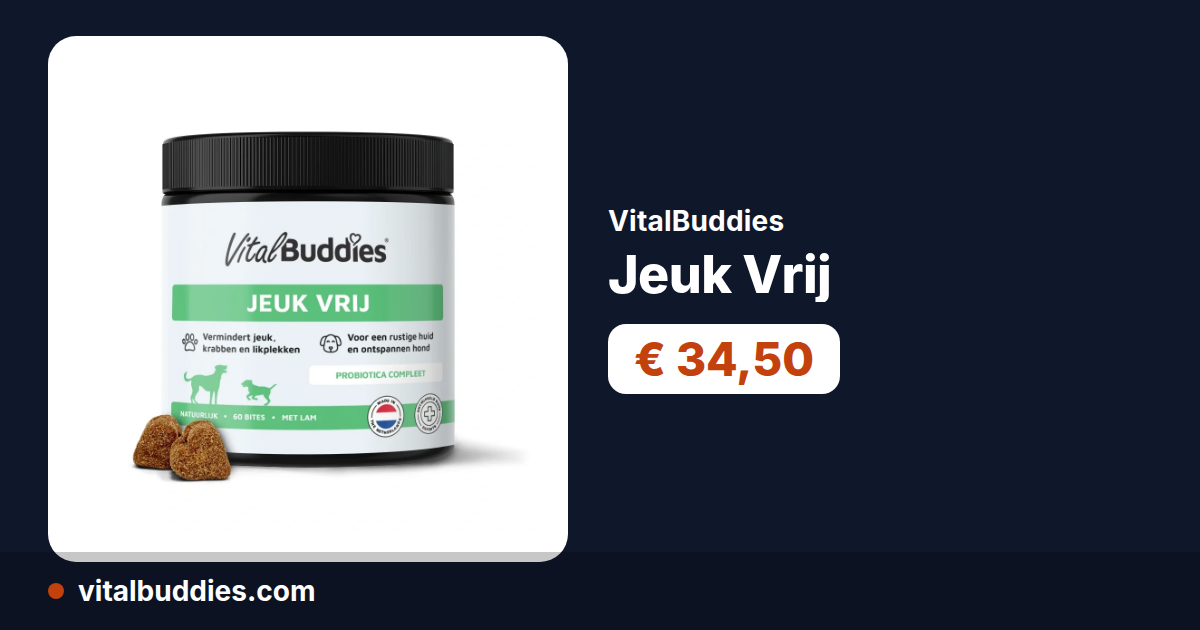
The live demo has three VitalBuddies products with live links, without an account. The three product cards there are each under 140 KB, well within WhatsApp’s 600 KB.
Using it in a Shopify theme
-
Sign one link per product. A signed
GETlink carries your public key ID and a signature, never your API key, so it’s safe in your theme’s HTML. This Node.js script prints one per product URL:// Usage: SHOTVIK_KEY_ID=… SHOTVIK_SIGNING_SECRET=… node sign-og-links.mjs > og-links.csv import { createHmac } from 'node:crypto'; const KID = process.env.SHOTVIK_KEY_ID; const SECRET = process.env.SHOTVIK_SIGNING_SECRET; const products = [ 'https://your-store.example/products/first-product', 'https://your-store.example/products/second-product', ]; function signedFromUrl(productUrl) { const params = { kid: KID, url: productUrl, cache: 'true', cache_ttl: '2592000' }; const canonical = Object.entries(params) .map(([k, v]) => [encodeURIComponent(k), encodeURIComponent(v)]) .sort((a, b) => (a[0] < b[0] ? -1 : a[0] > b[0] ? 1 : 0)) .map(([k, v]) => `${k}=${v}`) .join('&'); const sig = createHmac('sha256', SECRET) .update(`GET\n/v1/og/from-url\n${canonical}`) .digest('base64url'); return `https://api.shotvik.com/v1/og/from-url?${canonical}&sig=${sig}`; } for (const url of products) console.log(`${url},${signedFromUrl(url)}`); -
Store each link in a product metafield, for example
custom.og_image_urlof type URL, in the admin or with your usual bulk-editing tool. -
Output it in your theme. In the theme code, find where
og:imageis written (often ameta-tagssnippet) and use the metafield when it’s set:{%- liquid assign shotvik_og = blank if request.page_type == 'product' assign shotvik_og = product.metafields.custom.og_image_url.value endif -%} {%- if shotvik_og != blank -%} <meta property="og:image" content="{{ shotvik_og | escape }}"> <meta property="og:image:secure_url" content="{{ shotvik_og | escape }}"> <meta property="og:image:width" content="1200"> <meta property="og:image:height" content="630"> {%- else -%} {%- comment -%} keep your theme's existing og:image tags here {%- endcomment -%} {%- endif -%}If the theme also writes
twitter:image, give it the same URL. -
Test and refresh with the tools in step 4.
What to know before you use it
- Caching and price. These links use the opt-in cache for up to 30 days. Crawlers get the stored card, and those hits don’t count toward your quota. The price on the card is a snapshot from the time it was rendered, so use a shorter
cache_ttlif your prices change often; each new render counts. - How the page is read. Shotvik fetches the public product page once, as ShotvikBot, and reads its static HTML. It doesn’t bypass bot protection or password pages, and it follows
robots.txtrules for ShotvikBot (details for site owners). If it can’t read product data, you get a plain fallback card. - Quota. The free plan has 100 renders a month, 10 uncached renders per minute and 2 concurrent renders, with no card needed. Each product’s first render counts; cache hits count toward neither the monthly nor the per-minute limit.
- Where it runs. Rendering and the cache run on Hetzner servers in Helsinki, Finland, in the EU. See the privacy notice.
Related: OG images without Vercel · Product URL reference